VJ software
Visuals you play live.
Arpeggio is free VJ software for Mac. Put the stage full screen on a projector, keep the controls on your Mac, and play scenes, Freeze, Blackout and Bypass from a MIDI controller or your keyboard.
Try it
Play the stage.
This is live mode’s controller. Press a scene, or hold Freeze, Blackout or Bypass. Your keyboard plays it too: 1 to 8, and hold W, E or R.
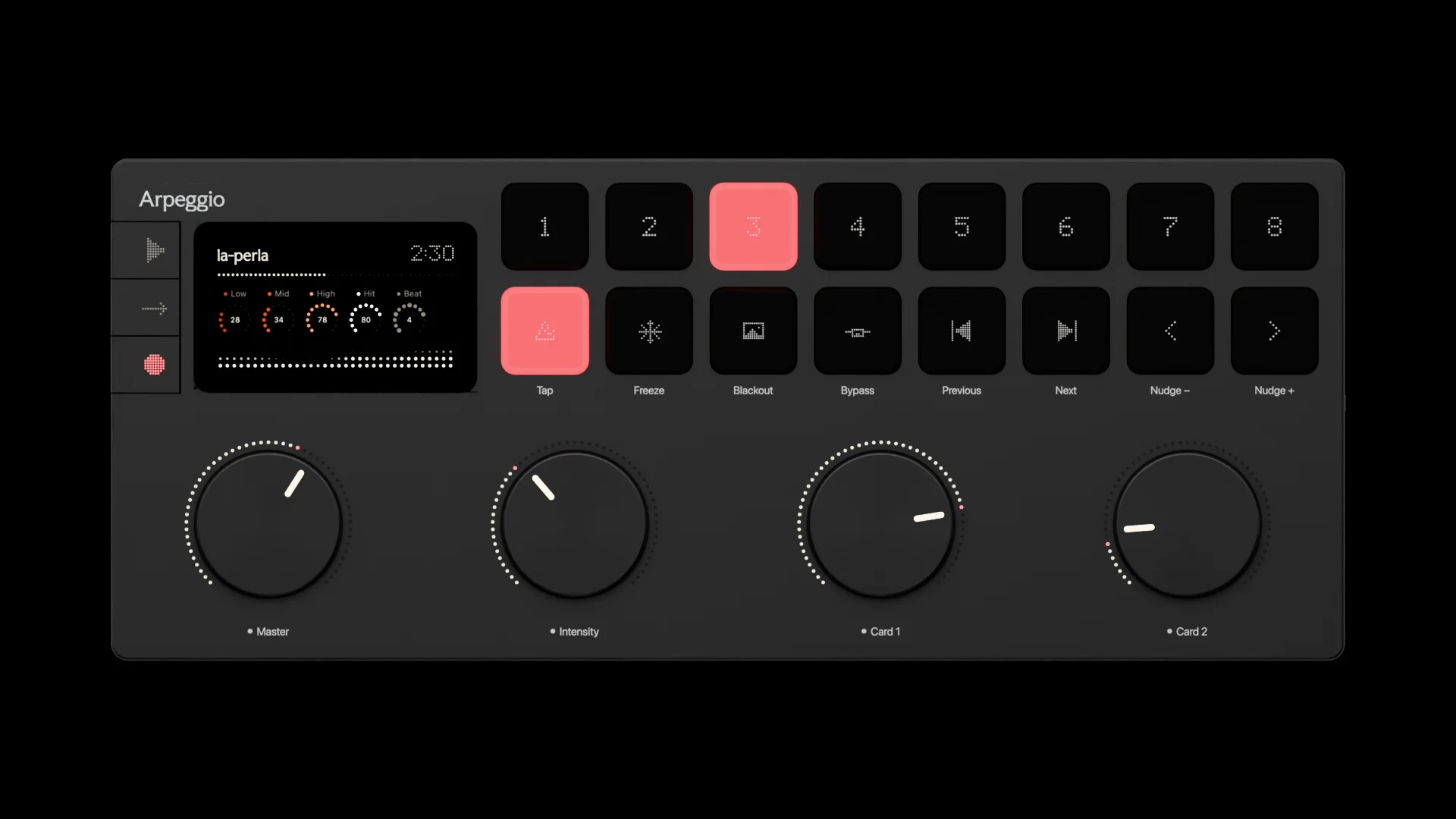
Scenes come in on the beat. Freeze, Blackout and Bypass last while you hold them.
How it works
From the desk to the wall.
Live in the header, or ⌃⌘L: the panel slides away and a controller rises under the stage. Esc takes you back.
- Open live mode.
The stage and the controller, nothing else. With a controller plugged in, a small screen shows what you just pressed.
- Show it on the projector.
Pick any display you plug in from Show On: the stage goes full screen there, and the controls stay on your Mac.
- Plug in a controller.
Known ones come set up; pick what each pad does in Settings ▸ Controllers. Any other plays Arpeggio’s own layout.
- Play.
Scenes land on the next beat. Hold Freeze, Blackout or Bypass. Master dims everything, on the projector too.
Controllers
| Controller | What it has | What it plays |
|---|---|---|
| Arpeggio’s own | On screen, played with the pointer or the keyboard | Scenes 1–8; Tap, Freeze, Blackout, Bypass, the previous and next picture, and the nudges; dials for Master, Intensity, a card and A ↔ B. Up close |
| APC mini MK2, Launchpad Mini MK3 | 8 × 8 grid, lit in each job’s colour | Scenes; cards on and off, and alone; layers and pictures; Freeze, Blackout, Bypass, Tap and the nudges |
| MPD218 | Pads and knobs | Scenes 1–8, cards 1–4, Freeze, Blackout, Next picture, Tap; knobs for Intensity, Master and cards |
| MPK mini MK3, LPD8 MK2 | Eight pads and eight knobs | Scenes 1–4, Freeze, Blackout, Next picture, Tap; knobs for Intensity, Master and cards 1–6 |
| EP-133 K.O. II | The keypad | Scenes 1–8, Next picture, Freeze, Blackout and Bypass |
| Any other MIDI controller | Notes 36 to 54, CC 70 to 73 | Plays Arpeggio’s own layout. Any key, note or knob can also switch a card or a layer, or move a setting. |
The keyboard, in live mode
| 1 – 8 | Bring back a scene |
| Q | Tap the tempo |
| W | Freeze, while held |
| E | Blackout, while held |
| R | Bypass, while held |
| T · Y | Previous and next picture |
| U · I | Nudge the beat back and on |
| ⇧1 – ⇧8 | Save a scene |
| M | Pin the scene to the song |
| Esc | Back to the panel |
Several sets of jobs for one controller, switched from a pad with Next pad set. Share one as a file.
Crossfade between two scenes, sweep through them all, or set how long a scene takes to come in. Scenes
Listen to a mixer, a microphone or an audio interface instead of the Mac, and line the picture up with the beat for each one.
Questions
Is Arpeggio free VJ software?
Yes. It’s free, with no account, for macOS 14 or later.
Which MIDI controllers does it work with?
The APC mini MK2, Launchpad Mini MK3, MPD218, MPK mini MK3, LPD8 MK2 and EP-133 K.O. II come set up, and you can pick what each pad does. Any other controller plays Arpeggio’s own layout, notes 36 to 54 and CC 70 to 73.
Can I put the visuals on a projector?
Yes. Show the stage on any display you plug in: it goes full screen there, and the controls stay on your Mac. Blackout and Master carry to it.
Can it listen to my mixer?
Yes. In Settings ▸ Listening, hear a microphone, a mixer or an audio interface, set the sensitivity, and line the picture up with the beat for each input.
Can I play it without a controller?
Yes. Arpeggio’s own controller is on screen, and the keyboard plays it: 1 to 8 for scenes, Q W E R for Tap, Freeze, Blackout and Bypass.
Can I record my set?
Yes. Press ⌘R to record the stage and the sound as you play, blackouts and all. Videos
Take it to the stage.
Free for Mac, with no account.
Download ArpeggiomacOS 14 or later. Or try it in your browser